david dominguez 😺
Suricata - Intro
Apr 28, 2026Why did I build a Suricata signature?
Idk man, its just a random switchup from the rest of all my other projects to experiment and learn something new. I’m sure I will explore more but I just wanted to start with something fresh and play around, it’s fun to push my own limits to see what I can pick up and learn within an hour or two. This is essentially just the documentation of my experience for that hour or two of learning.
What is Suricata anyway?
Suricata itself is an open source engine that provides support as an Intrusion Detection System (IDS), Intrusion Prevention System (IPS), and Network Security Monitoring platform. There is readily available documentation that I read through during my learning. A lot of what I’m describing during this post can be found freely via Suricata documentation.
Suricata v SIEM
Building a Suricata signature is targeted to network traffic, and nothing else. SIEM detections can range from any aspect, from network to endpoint to cloud.
SIEM detections in general are only good based on how concise you can scope it to threat actor activity, but this is contingent on good data/logs coming into the SIEM. Additionally, SIEMs cost money not only from an operational, day to day human perspective, but also from a licensing perspective, which typically isn’t a small cost many companies or organizations can readily invest.
Considering the Suricata engine is open source, these signatures can be considered more universally available for organizations to leverage and take advantage of them.
Signature Structure
To be clear, the way I describe the signature structure is similar to how Suricata docs mention it at a higher level, and I would also like to use this to explain it more. The way I’ll explain it is trying via questions to get you to dig more and identify the relevant information you need for your signature. For more information and details, see the Suricata documentation on rule structure here
The structure is dependent upon a few key sections:
- Action: What do you want this signature to do if your criteria matches against network traffic? Do you want it to build an alert? Drop the packet? Your answer will dictate what action you put here.
- Header: Now you want to start to dig. What is it, from a very broad perspective, do you want this signature to capture? You’ll need to define protocol, source and destination IPs, ports, and direction. Are you targeting SMTP traffic, or HTTP traffic? Are you targeting traffic against a very specific IP? Are you trying to highlight outbound or bidirectional traffic?
- Rule Options: These are very broad and include various fields you can include here, but one main thing I want to call attention to is that this is where you get very specific from a signature standpoint. Dig deep into making sure that you exhaust as many options as possible to scope down the traffic you’re trying to identify against, here.
My Signature
alert http any any <> 146.190.62.39 80 (msg:”connecting to httpforever.com”; content:”GET”; http.host; content:”httpforever.com”;sid:2;)
Upfront, this is what I built within my hour or so of just messing around, reading over documentation, and just getting a feel for what to do and how to build the signature.
Let me break it out into the three parts so you get my gist and my reading over the signature.
alert
This is my action. I want the overall end result to be an alert if my criteria matches.
http any any <> 146.190.62.39 80
These are my headers I’m looking for. Let me break it down a bit more:
- http is the protocol I’m searching against, so in other words, anything that is like https, ftp, smtp, etc. gets filtered out at this initial level, which is here.
- any any is what I put here, but in general anything right after the protocol is going to be read as Source IP Address, and Source Port. So in layman terms what I’m saying here is this should be coming from ANY Source IP Address, and ANY Source Port.
- <> is symbolizing ‘any direction’. So in layman terms what I’m saying is this should be if I have any source IP talking outbound to 146.190.62.39 on port 80 OR if I have 146.190.62.39 on port 80 talking to any Destination IP on any port that I have visibility on.
- 146.190.62.39 80 is read as: What is the Destination IP and the Destination Port I’m looking against? To be fair, I did have the packet capture (pcap) ahead of time, so I was able to find this information pretty quickly and add it. Additionally, the reason we have a destination port set as ‘80’, is because we are checking against HTTP, which is commonly communicated over port 80.
(msg:”connecting to httpforever.com”; content:”GET”; http.host; content:”httpforever.com”;sid:2;)
These are my rule options. Similarly, let me break it down a bit more:
- msg is just contextual information about the alert and the rule (my description is terrible, don’t use it at all in production usage).
- content is a payload match, its looking within the payload to see if I am receiving a GET
- http.host; content:”httpforever.com” is looking for a match on the hostname thats coming in, and I’m scoping specifically to look for this value being equivalent to “httpforever.com”. Be cautious as matching via http.host.raw will act differently than matching via http.host. http.host makes the hostname all lowercase before matching, http.host.raw does not.
- sid:2; is the signature ID of the rule. I had another one that was #1, because it was a broader first iteration, then scoped it down with this one.
How I performed testing
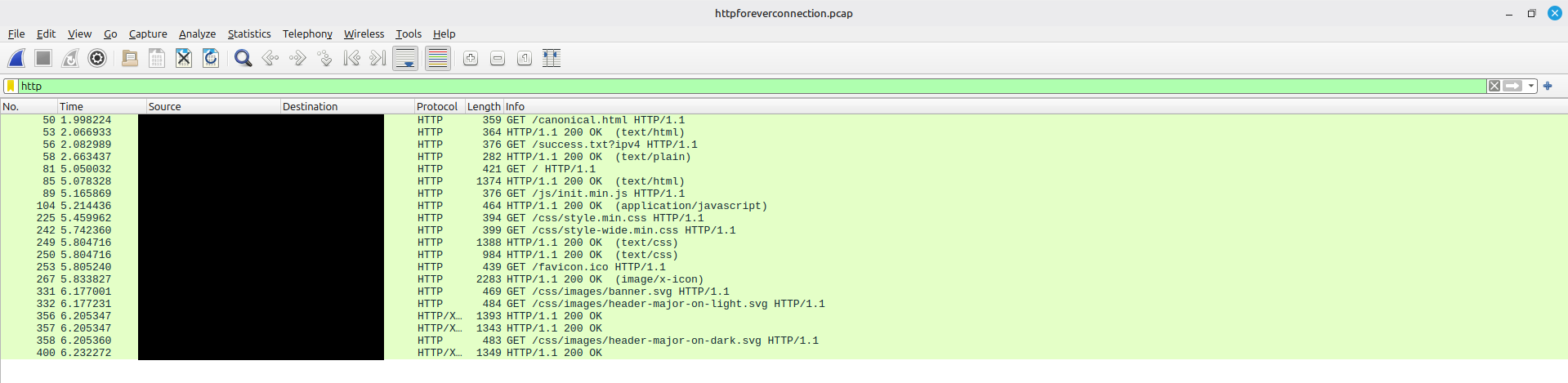
I captured a pcap via Wireshark to test it out, and connected my machine to httpforever.com - not linking in case you don’t want to go visit, but feel free.
sudo apt install suricata
Then I used the following above command to install suricata on my machine.
suricata -r httpforeverconnection.pcap -S httpforever.rules -l ~/Desktop/
Then used the above command to test my signature. Similarly to my signature, I’ll break down the command:
- suricata is how you start by referencing the suricata engine
- -r is symbolizing offline mode (aka use a packet replay) and expects a pcap to be passed along after this, which is my pcap file
- -S loads a suricata signature, which is my httpforever.rules
- -l points a default log directory to my Desktop here, there is some other default directory where logs are sent to, but I didn’t have a chance to find it, and thought it would be quicker to do things this way anyway.

Then after it ran I just read the fast.log which is the summary result of what events matched the signature. For the full event information, you’ll want to check eve.json.
References
I don’t claim to be any expert in building Suricata signatures, and owe all credit to a few places:
- First and foremost, Suricata Documentation
- Secondly, Snorpy which helped me also get a jumpstart when I was struggling with understanding how to think and structure the signature.
Feel free to message me if something on this post is wrong. As this was a fun learning exercise, I have tried my best to validate my learning against documentation.